Researchers have found yet another family of malicious extensions in the Chrome Web Store. This time, 30 different Chrome extensions were found stealing credentials from more than 260,000 users.
The extensions rendered a full-screen iframe pointing to a remote domain. This iframe overlaid the current webpage and visually appeared as the extension’s interface. Because this functionality was hosted remotely, it was not included in the review that allowed the extensions into the Web Store.
To spread the risk of detections and take-downs, the attackers used a technique known as “extension spraying.” This means they used different names and unique identifiers for basically the same extension.
What often happens is that researchers provide a list of extension names and IDs, and it’s up to users to figure out whether they have one of these extensions installed.
Searching by name is easy when you open your “Manage extensions” tab, but unfortunately extension names are not unique. You could, for example, have the legitimate extension installed that a criminal tried to impersonate.
Searching by unique identifier
For Chrome and Edge, a browser extension ID is a unique 32‑character string of lowercase letters that stays the same even if the extension is renamed or reshipped.
When we’re looking at the extensions from a removal angle, there are two kinds: those installed by the user, and those force‑installed by other means (network admin, malware, Group Policy Object (GPO), etc.).
We will only look at the first type in this guide—the ones users installed themselves from the Web Store. The guide below is aimed at Chrome, but it’s almost the same for Edge.
How to find installed extensions
You can review the installed Chrome extensions like this:
In the address bar type chrome://extensions/.
This will open the Extensions tab and show you the installed extensions by name.
Now toggle Developer mode to on and you will also see their unique ID.
Don’t remove this one. It’s one of the good ones.
Removal method in the browser
Use the Remove button to get rid of any unwanted entries.
If it disappears and stays gone after restart, you’re done. If there is no Remove button or Chrome says it’s “Installed by your administrator,” or the extension reappears after a restart, there’s a policy, registry entry, or malware forcing it.
Alternative
Alternatively, you can also search the Extensions folder. On Windows systems this folder lives here: C:\Users\<your‑username>\AppData\Local\Google\Chrome\User Data\Default\Extensions.
Please note that the AppData folder is hidden by default. To unhide files and folders in Windows, open Explorer, click the View tab (or menu), and check the Hidden items box. For more advanced options, choose Options > Change folder and search options > View tab, then select Show hidden files, folders, and drives.
Chrome extensions folder
You can organize the list alphabetically by clicking on the Name column header once or twice. This makes it easier to find extensions if you have a lot of them installed.
Deleting the extension folder here has one downside. It leaves an orphaned entry in your browser. When you start Chrome again after doing this, the extension will no longer load because its files are gone. But it will still show up in the Extensions tab, only without the appropriate icon.
So, our advice is to remove extensions in the browser when possible.
Malicious extensions
Below is the list of credential-stealing extensions using the iframe method, as provided by the researchers.
Extension ID
Extension name
acaeafediijmccnjlokgcdiojiljfpbe
ChatGPT Translate
baonbjckakcpgliaafcodddkoednpjgf
XAI
bilfflcophfehljhpnklmcelkoiffapb
AI For Translation
cicjlpmjmimeoempffghfglndokjihhn
AI Cover Letter Generator
ckicoadchmmndbakbokhapncehanaeni
AI Email Writer
ckneindgfbjnbbiggcmnjeofelhflhaj
AI Image Generator Chat GPT
cmpmhhjahlioglkleiofbjodhhiejhei
AI Translator
dbclhjpifdfkofnmjfpheiondafpkoed
Ai Wallpaper Generator
djhjckkfgancelbmgcamjimgphaphjdl
AI Sidebar
ebmmjmakencgmgoijdfnbailknaaiffh
Chat With Gemini
ecikmpoikkcelnakpgaeplcjoickgacj
Ai Picture Generator
fdlagfnfaheppaigholhoojabfaapnhb
Google Gemini
flnecpdpbhdblkpnegekobahlijbmfok
ChatGPT Picture Generator
fnjinbdmidgjkpmlihcginjipjaoapol
Email Generator AI
fpmkabpaklbhbhegegapfkenkmpipick
Chat GPT for Gmail
fppbiomdkfbhgjjdmojlogeceejinadg
Gemini AI Sidebar
gcfianbpjcfkafpiadmheejkokcmdkjl
Llama
gcdfailafdfjbailcdcbjmeginhncjkb
Grok Chatbot
gghdfkafnhfpaooiolhncejnlgglhkhe
AI Sidebar
gnaekhndaddbimfllbgmecjijbbfpabc
Ask Gemini
gohgeedemmaohocbaccllpkabadoogpl
DeepSeek Chat
hgnjolbjpjmhepcbjgeeallnamkjnfgi
AI Letter Generator
idhknpoceajhnjokpnbicildeoligdgh
ChatGPT Translation
kblengdlefjpjkekanpoidgoghdngdgl
AI GPT
kepibgehhljlecgaeihhnmibnmikbnga
DeepSeek Download
lodlcpnbppgipaimgbjgniokjcnpiiad
AI Message Generator
llojfncgbabajmdglnkbhmiebiinohek
ChatGPT Sidebar
nkgbfengofophpmonladgaldioelckbe
Chat Bot GPT
nlhpidbjmmffhoogcennoiopekbiglbp
AI Assistant
phiphcloddhmndjbdedgfbglhpkjcffh
Asking Chat Gpt
pgfibniplgcnccdnkhblpmmlfodijppg
ChatGBT
cgmmcoandmabammnhfnjcakdeejbfimn
Grok
We don’t just report on threats—we remove them
Cybersecurity risks should never spread beyond a headline. Keep threats off your devices by downloading Malwarebytes today.
It usually starts with a small convenience. You log into a site once, Chrome offers to remember the password, and you click “Save” without thinking twice. Weeks turn into months, devices multiply, and before you know it, your browser knows more about your digital life than you do. This is exactly how many users end up relying on Chrome’s built-in tools without ever learning how to delete passwords from Chrome when it actually matters.That quiet accumulation of saved credentials feels harmless until you stop considering what’s actually at stake. Losing a device, sharing a computer, or falling victim to a remote attack can instantly turn convenience into exposure. Managing and deleting saved passwords isn’t busywork; it’s basic digital hygiene, especially if you want to delete saved passwords in Chrome before they become a liability.This article walks through how to remove passwords from Google Chrome, explains how to clear saved passwords in Chrome across devices, and outlines why browser-based password storage is risky, along with safer alternatives that make sense in real-world use.
Why Browser-Saved Passwords Are a Security Risk
Most modern browsers, including Chrome, Firefox, Edge, Safari, and Opera, offer built-in password managers. Chrome’s implementation, known as Google Password Manager, is deeply integrated into Chrome, Android, and Google accounts. It autofills credentials, suggests strong passwords, syncs logins across devices, and even flags compromised passwords after known data breaches.All of that sounds reassuring, but there’s a trade-off. If someone gains physical access to your unlocked device or remote access through a Man-in-the-Middle or Evil Twin attack, they may also gain access to every stored login. That risk escalates quickly if banking, email, or work-related credentials are saved. Even without theft or hacking, saved passwords make casual snooping far too easy, which is why knowing how to remove saved passwords from Chrome is more than just a cleanup task.The problem isn’t that password managers are bad. It’s that browser-based password storage ties your credentials too closely to the device and session itself, making it harder to fully control or audit access unless you deliberately erase saved passwords in Chrome.
How to Delete Saved Passwords in Google Chrome
Chrome remains the most widely used browser, which makes it a natural starting point when you want to delete autofill passwords in Chrome or remove stored login data selectively.
Deleting Individual Passwords on Desktop
Open Google Chrome.
Click the three-dot menu in the top-right corner.
Select Settings.
Navigate to Autofill and passwords, then open Google Password Manager.
You’ll see a list of saved sites, usernames, and masked passwords.
Click a specific website and select Delete to delete stored passwords in Chrome one by one.
Deleting Multiple Passwords
Chrome allows bulk deletion by selecting multiple entries:
Check the boxes next to the passwords you want to remove.
Click Delete at the top of the list.
Confirm when prompted.
This approach is useful when you want to remove Chrome password manager data without wiping everything.
Deleting All Passwords at Once
There’s no single “Delete All Passwords” button, but you can still clear saved passwords in Chrome completely:
If Chrome sync is enabled, these steps will delete saved passwords in Chrome across all synced devices.
Chrome Password Deletion on Mobile
Android
Open the Chrome app.
Tap the three-dot menu.
Go to Settings > Password Manager.
Tap a saved password and select Delete.
To remove all saved passwords:
Tap Clear browsing data.
Set the time range to All Time.
Select Saved Passwords.
Tap Clear data.
iOS
Open Chrome.
Tap the three-dot icon at the bottom right.
Open Password Manager.
Tap Edit, select sites, then Delete.
Bulk deletion follows the same Clear Browsing Data path under Privacy and Security, allowing you to remove passwords from Google Chrome on iOS as well.
Turning Off Password Saving in Chrome
If you want to turn off and delete passwords in Chrome permanently so the browser stops prompting, you should follow these steps:
Desktop: Settings > Autofill and passwords > Google Password Manager > Settings. Toggle Offer to save passwords and Sign in automatically off.
Android and iOS: Open Password Manager, tap Settings, and turn Offer to save passwords off.
Uncheck Ask to save logins and passwords for websites.
Safari (macOS and iOS)
On Mac:
Open Safari > Preferences > Passwords.
Select passwords and click Remove or Remove All.
On iOS:
Open the Settings app.
Tap Passwords.
Swipe left on entries to delete, or use Edit to remove all.
Disable password saving by turning off AutoFill Passwords.
Opera
On desktop:
Open Opera > Settings > Advanced.
Under Autofill, select Passwords.
Remove entries via the three-dot menu.
On iOS:
Use the system Passwords menu in Settings.
Swipe to delete entries.
Disable AutoFill Passwords to stop future saves.
What to Use Instead of Browser Password Storage
Strong password practices demand length, complexity, and uniqueness, rules that make human memory an unreliable storage medium. This is where dedicated password managers earn their place. Tools like 1Password, LastPass, Dashlane, Keeper, and Apple Keychain are built specifically for credential security, not browser convenience.Deleting saved passwords from your browser isn’t about rejecting convenience; it’s about choosing where convenience makes sense. Browsers are optimized for speed and accessibility, not long-term credential protection. Once you understand how easily stored logins can become liabilities, learning how to delete passwords from Chrome feels less like a chore and more like reclaiming control.If you rely on Chrome or any modern browser daily, knowing how to delete stored passwords in Chrome, disable autofill, and pair those actions with a proper password manager and multi-factor authentication is a practical step toward a safer digital life.
Cybercriminals are using browser push notifications to deliver malware and phishing attacks.
Researchers at BlackFog described how a new command-and-control platform, called Matrix Push C2, uses browser push notifications to reach potential victims.
When we warned back in 2019 that browser push notifications were a feature just waiting to be abused, we noted that the Notifications API allows a website or app to send notifications that are displayed outside the page at the system level. This means it lets web apps send information to a user even when they’re idle or running in the background.
Here’s a common example of a browser push notification:
This makes it harder for users to know where the notifications come from. In this case, the responsible app is the browser and users are tricked into allowing them by the usual “notification permission prompt” that you see on almost every other website.
But malicious prompts aren’t always as straightforward as legitimate ones. As we explained in our earlier post, attackers use deceptive designs, like fake video players that claim you must click “Allow” to continue watching.
In reality, clicking “Allow” gives the site permission to send notifications, and often redirects you to more scam pages.
Granting browser push notifications on the wrong website gives attackers the ability to push out fake error messages or security alerts that look frighteningly real. They can make them look as if they came from the operating system (OS) or a trusted software application, including the titles, layout, and icons. There are pre-formatted notifications available for MetaMask, Netflix, Cloudflare, PayPal, TikTok, and more.
Criminals can adjust settings that make their messages appear trustworthy or cause panic. The Command and Control (C2) panel provides the attacker with granular control over how these push notifications appear.
Image courtesy of BlackFog
But that’s not all. According to the researchers, this panel provides the attacker with a high level of monitoring:
“One of the most prominent features of Matrix Push C2 is its active clients panel, which gives the attacker detailed information on each victim in real time. As soon as a browser is enlisted (by accepting the push notification subscription), it reports data back to the C2.”
It allows attackers to see which notifications have been shown and which ones victims have interacted with. Overall, this allows them to see which campaigns work best on which users.
Matrix Push C2 also includes shortcut-link management, with a built-in URL shortening service that attackers can use to create custom links for their campaign, leaving users clueless about the true destination. Until they click.
Ultimately, the end goal is often data theft or monetizing access, for example, by draining cryptocurrency wallets, or stealing personal information.
How to find and remove unwanted notification permissions
A general tip that works across most browsers: If a push notification has a gear icon, clicking it will take you to the browser’s notification settings, where you can block the site that sent it. If that doesn’t work or you need more control, check the browser-specific instructions below.
Chrome
To completely turn off notifications, even from extensions:
Click the three dots button in the upper right-hand corner of the Chrome menu to enter the Settings menu.
Select Privacy and Security.
Click Site settings.
Select Notifications.
By default, the option is set to Sites can ask to send notifications. Change to Don’t allow sites to send notifications if you want to block everything.
For more granular control, use Customized behaviors.
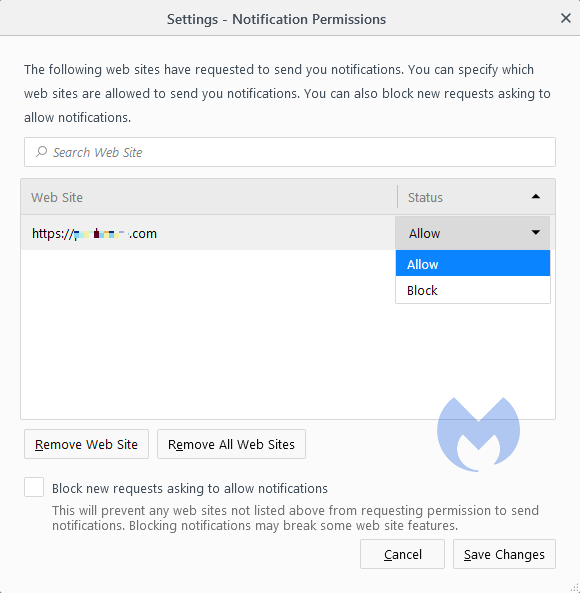
Selecting Remove will delete the item from the list. It will ask permission to show notifications again if you visit their site.
Selecting Block prevents permission prompts entirely, moved them to the block list.
You can also check Block new requests asking to allow notifications at the bottom.
In the same menu, you can also set listed items to Block or Allow by using the drop-down menu behind each item.
Opera
Opera’s settings are very similar to Chrome’s:
Open the menu by clicking the O in the upper left-hand corner.
Go to Settings (on Windows)/Preferences (on Mac).
Click Advanced, then Privacy & security.
Under Content settings (desktop)/Site settings (Android) select Notifications.
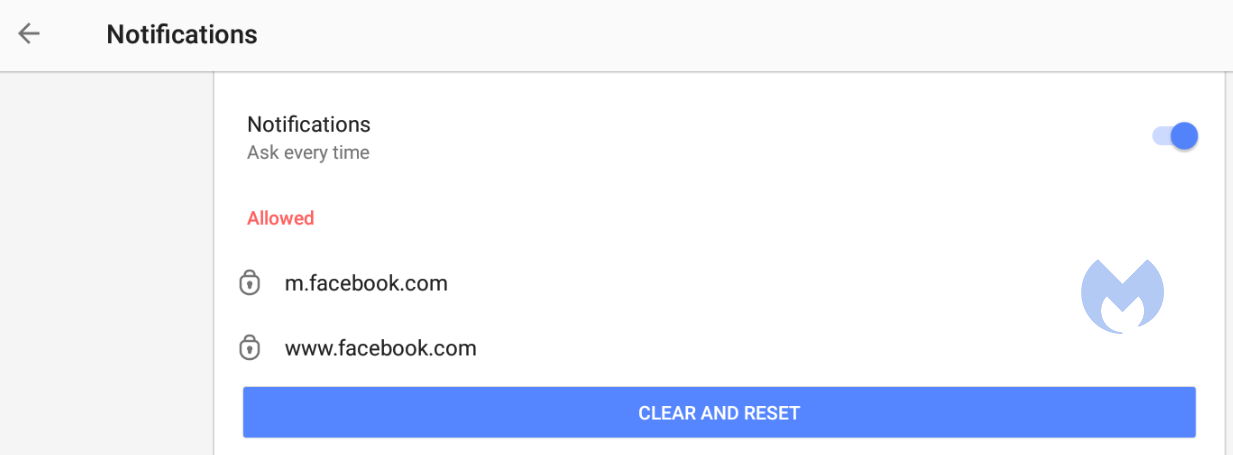
On desktop, Opera behaves the same as Chrome. On Android, you can remove items individually or in bulk.
Edge
Edge is basically the same as Chrome as well:
Open Edge and click the three dots (…) in the top-right corner, then select Settings.
In the left-hand menu, click on Privacy, search, and services.
Under Sites permissions > All permissions, click on Notifications.
Turn on Quiet notifications requests to block all new notification requests.
Use Customized behaviors for more granular control.
Safari
To disable web push notifications in Safari, go to Safari > Settings > Websites > Notifications in the menu bar, select the website from the list, and change its setting to Deny. To stop all future requests, uncheck the box that says Allow websites to ask for permission to send notifications in the same window.
For Mac users
Go to Safari > Settings > Websites > Notifications.
Select a site and change its setting to Deny or Remove.
To stop all future prompts, uncheck Allow websites to ask for permission to send notifications.
For iPhone/iPad users
Open Settings.
Tap Notifications.
Scroll to Application Notifications and select Safari.
You’ll see a list of sites with permission.
Toggle any site to off to block its notifications.
We don’t just report on threats—we help safeguard your entire digital identity
Cybersecurity risks should never spread beyond a headline. Protect your, and your family’s, personal information by using identity protection.
We’re seeing a surge in phishing calendar invites that users can’t delete, or that keep coming back because they sync across devices. The good news is you can remove them and block future spam by changing a few settings.
Most of these unwanted calendar entries are there for phishing purposes. Most of them warn you about a “impending payment” but the difference is in the subject and the action they want the target to take.
Sometimes they want you to call a number:
And sometimes they invite you to an actual meeting:
We haven’t followed up on these scams, but when attackers want you to call them or join a meeting, the end goal is almost always financial. They might use a tech support scam approach and ask you to install a Remote Monitoring and Management tool, sell you an overpriced product, or simply ask for your banking details.
This blog focuses on how to remove these unwanted entries. One of the obstacles is that calendars often sync across devices.
Outlook Calendar
If you use Outlook:
Delete without interacting: Avoid clicking any links or opening attachments in the invite. If available, use the “Do not send a response” option when deleting to prevent confirming that your email is active.
Block the sender: Right-click the event and select the option to report the sender as junk or spam to help prevent future invites from that email address.
Adjust calendar settings: Access your Outlook settings and disable the option to automatically add events from email. This setting matters because even if the invite lands in your spam folder, auto-adding invites will still put the event on your calendar.
Report the invite: Report the spam invitation to Microsoft as phishing or junk.
Verify billing issues through official channels: If you have concerns about your account, go directly to the company’s official website or support, not the information in the invite.
Gmail Calendar
To disable automatic calendar additions:
Open Google Calendar.
Click the gear icon and select Settings in the upper right part of the screen.
Under Event settings, change Add invitations to my calendar to either Only if the sender is known or When I respond to the invitation email. (The default setting is From everyone, which will add any invite to your calendar.)
Uncheck Show events automatically created by Gmail if you want to stop Gmail from adding to your calendar on its own.
Android Calendar
To prevent unknown senders from adding invites:
Open the Calendar app.
Tap Menu > Settings.
Tap General > Adding invitations > Add invitations to my calendar.
Select Only if the sender is known.
For help reviewing which apps have access to your Android Calendar, refer to the support page.
Mac Calendars
To control how events get added to your Calendar on a Mac:
Go to Apple menu > System Settings > Privacy & Security.
Click Calendars.
Turn calendar access on or off for each app in the list.
If you allow access, click Options to choose whether the app has full access or can only add events.
iPhone and iPad Calendar
The controls are similar to macOS, but you may also want to remove additional calendars:
Open Settings.
Tap Calendar > Accounts > Subscribed Calendars.
Select any unwanted calendars and tap the Delete Account option.
Additional calendars
Which brings me to my next point. Check both the Outlook Calendar and the mobile Calendar app for Additional Calendars or subscribed URLs and Delete/Unsubscribe. This will stop the attacker from being able to add even more events to your Calendar. And looking in both places will be helpful in case of synchronization issues.
Several victims reported that after removing an event, they just came back. This is almost always due to synchronization. Make sure you remove the unwanted calendar or event everywhere it exists.
Tracking down the source can be tricky, but it may help prevent the next wave of calendar spam.
How to prevent calendar spam
We’ve covered some of this already, but the main precautions are:
Turn off auto‑add or auto‑processing so invites stay as emails until you accept them.
Restrict calendar permissions so only trusted people and apps can add events.
In shared or resource calendars, remove public or anonymous access and limit who can create or edit items.
Use an up-to-date real-time anti-malware solution with a web protection component to block known malicious domains.
Don’t engage with unsolicited events. Don’t click links, open attachments, or reply to suspicious calendar events such as “investment,” “invoice,” “bonus payout,” “urgent meeting”—just delete the event.
Enable multi-factor authentication (MFA) on your accounts so attackers who compromise credentials can’t abuse the account itself to send or auto‑accept invitations.
Pro tip: If you’re not sure whether an event is a scam, you can feed the message to Malwarebytes Scam Guard. It’ll help you decide what to do next.
We don’t just report on threats—we remove them
Cybersecurity risks should never spread beyond a headline. Keep threats off your devices by downloading Malwarebytes today.
It adds a small extra step when logging in, but that extra effort pays off. Instagram’s 2FA requires an additional code whenever you try to log in from an unrecognized device or browser—stopping attackers even if they have your password.
Instagram offers multiple 2FA options: text message (SMS), an authentication app (recommended), or a security key.
Here’s how to enable 2FA on Instagram for Android, iPhone/iPad, and the web.
How to set up 2FA for Instagram on Android
Open the Instagram app and log in.
Tap your profile picture at the bottom right.
Tap the menu icon (three horizontal lines) in the top right.
Select Accounts Center at the bottom.
Tap Password and security > Two-factor authentication.
Choose your Instagram account.
Select a verification method: Text message (SMS), Authentication app (recommended), or WhatsApp.
SMS: Enter your phone number if you haven’t already. Instagram will send you a six-digit code. Enter it to confirm.
Authentication app: Choose an app like Google Authenticator or Duo Mobile. Scan the QR code or copy the setup key, then enter the generated code on Instagram.
WhatsApp: Enable text message security first, then link your WhatsApp number.
Follow the on-screen instructions to finish setup.
How to set up 2FA for Instagram on iPhone or iPad
Open the Instagram app and log in.
Tap your profile picture at the bottom right.
Tap the menu icon > Settings > Security > Two-factor authentication.
Tap Get Started.
Choose Authentication app (recommended), Text message, or WhatsApp.
Authentication app: Copy the setup key or scan the QR code with your chosen app. Enter the generated code and tap Next.
Text message: Turn it on, then enter the six-digit SMS code Instagram sends you.
WhatsApp: Enable text message first, then add WhatsApp.
Follow on-screen instructions to complete the setup.
Click Two-factor authentication, then choose your account.
Note: If your accounts are linked, you can enable 2FA for both Instagram and your overall Meta account here.
Choose your preferred 2FA method and follow the online prompts.
Enable it today
Even the strongest password isn’t enough on its own. 2FA means a thief must have access to your an additional factor to be able to log in to your account, whether that’s a code on a physical device or a security key. That makes it far harder for criminals to break in.
Turn on 2FA for all your important accounts, especially social media and messaging apps. It only takes a few minutes, but it could save you hours—or even days—of recovery later.It’s currently the best password advice we have.
We don’t just report on threats – we help safeguard your entire digital identity
Cybersecurity risks should never spread beyond a headline. Protect your—and your family’s—personal information by using identity protection.

 Login
Login